3. Installing MAPLE
This section describes how to use the installation script to download and install MAPLE. This script will make a folder
called maple-config in your user’s home directory with a docker-compose.yml and a config.yml file. The config.yml
file contains all of the parameters and settings for MAPLE and will be modified in future sections.
Warning
By default, the script will attempt to configure your ethernet network interface eth0 with a static IP following
the format 10.TE.AM.15 using NetworkManager. Your terminal will get disconnected if this is interface you using
for SSH. If you want to modify or disable network configuration, see the Advanced section below.
Note
Installation may take over 1 hour depending on your internet speed since you must pull the necessary Docker image (~1.5GB)
Note
If you run the script multiple times, your config.yml and docker-compose.yml files will not be overwritten.
3.1. Installation
Copy & paste (right click to paste in PuTTY) the following line into your terminal connected to your Raspberry Pi (or other device) to download the installation script. Press enter to run the command.
wget -O install-maple.sh https://raw.githubusercontent.com/cudy789/MAPLE/refs/heads/main/install.sh

Run the installation script using the following command
bash install-maple.shThe installation script will ask you to enter your team number to set a static IP address. Type your team number into the terminal, then hit enter.
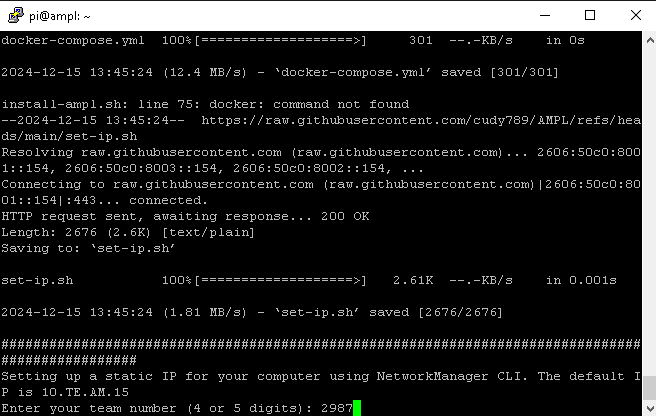
The script will ask you to confirm your entry. Type
y, then press enter.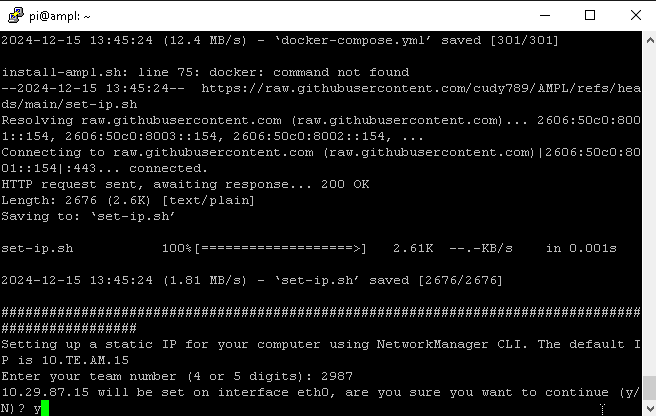
You will see the following once the script has finished running
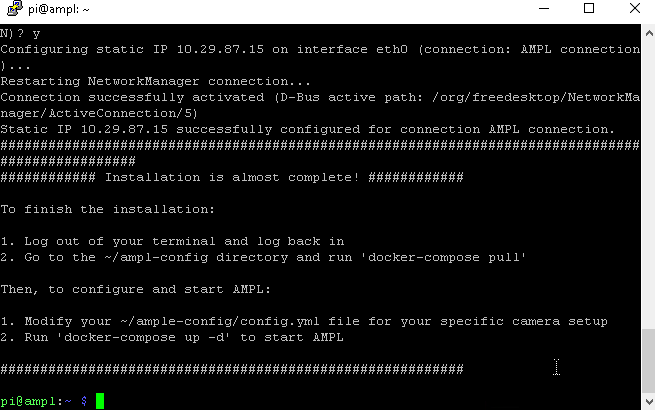
Logout of the Raspberry Pi (close PuTTY) and log back in
Change directory (
cd) to the new folder with the MAPLE configuration filescd ~/maple-config
Run
docker-compose pull. This will take a few minutes to complete.docker-compose pull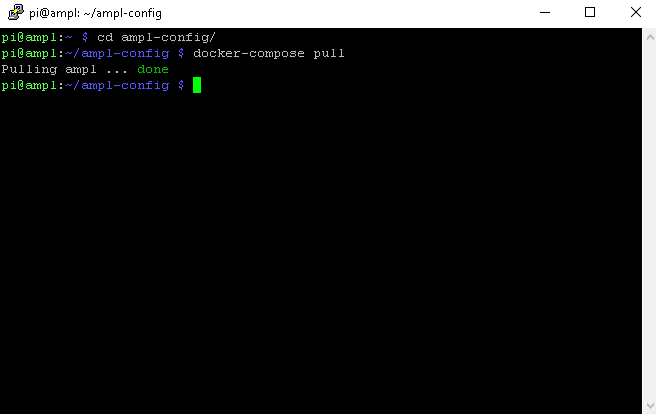
Now you’re ready to configure your cameras!
3.2. Advanced
To skip network configuration altogether, run the script with SKIP_STATIC_IP=1
# Skip static IP assigment
SKIP_STATIC_IP=1 bash install-maple.sh
You can override the STATIC_IP and INTERFACE bash environment variables as well to change the IP address and interface.
# Specify static IP and interface
STATIC_IP=192.168.1.13 INTERFACE=eth1 bash install-maple.sh
Warning
FRC FMS has a reserved IP range for teams to use for static IPs. Make sure your static IP choice falls within this allowed range.
You can run the downloaded set-ip.sh script at any time to change your static IP configuration.
3.2.1. Removing a static IP
If you accidentally set a static IP on the wrong interface or want to remove the static IP for any reason, use the following commands.
Find your connection name that you want to delete
$ sudo nmcli con show

NAME                UUID                                  TYPE      DEVICE
MAPLE connection     5146a95d-45b9-4606-b6b7-37a22b284d20  ethernet  eth0
preconfigured       6fb8db51-35b6-42bb-ad87-a34a5530efed  wifi      wlan0
lo                  42ff8627-9480-4911-86ac-d41aea7838aa  loopback  lo
Wired connection 1  2fc4b307-c88d-3f00-93f0-ea4c3759dec8  ethernet  --
Delete the connection
sudo nmcli con delete "MAPLE connection"